USB 2.0 vs. USB 3.0: What’s the Difference?
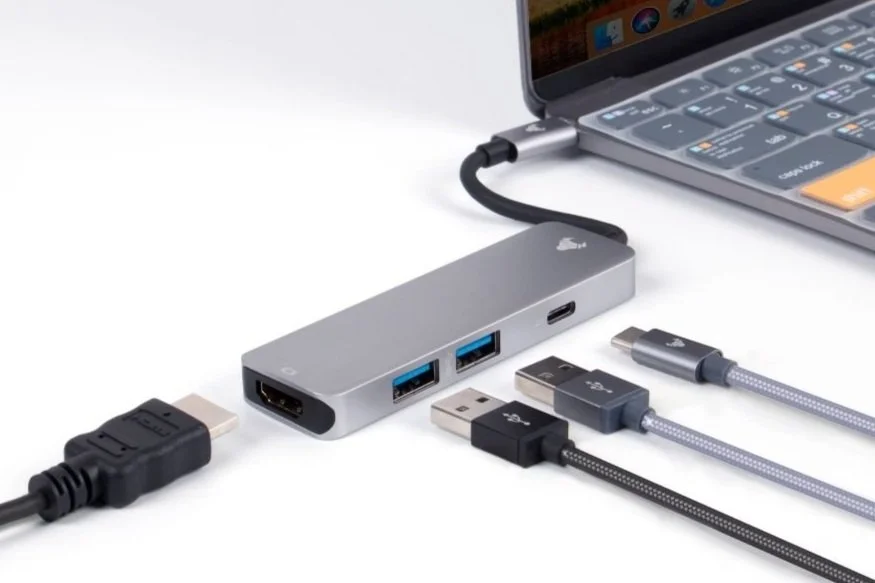
USB 2.0 and USB 3.0 are two versions of the Universal Serial Bus (USB) standard that differ significantly in performance, power, and overall functionality. If you're familiar with basic IT concepts, understanding the nuances between these two standards can help you make better decisions when purchasing or using devices that require USB connections. Let's explore the key differences in detail.
Speed:
One of the biggest and most important differences between USB 2.0 and USB 3.0 is the data transfer speed. USB 2.0, which was released in 2000, can transfer data at a maximum rate of 480 Mbps (megabits per second). In contrast, USB 3.0, introduced in 2008, offers a much higher data transfer rate of up to 5 Gbps (gigabits per second). This tenfold speed increase makes USB 3.0 ideal for tasks that require moving large files, such as HD videos or extensive backups.
In real-world use, this speed difference means that a USB 3.0 connection can transfer a full HD movie in seconds, while USB 2.0 would take several minutes. This performance gap is particularly noticeable when transferring large files or performing backups, and it's a key reason why many newer devices, such as external hard drives and flash drives, come with USB 3.0 ports.
Power Output:
Power delivery is another area where USB 3.0 shines over USB 2.0. While USB 2.0 provides up to 500 mA (milliamps) of power to connected devices, USB 3.0 can supply up to 900 mA. This increased power delivery allows USB 3.0 to charge devices like smartphones, tablets, and portable hard drives faster and more efficiently. Additionally, this extra power can be helpful for running power-hungry peripherals, such as external drives or devices that perform heavy data processing.
The additional power also allows for more efficient data transfers, as USB 3.0 can handle multiple data channels simultaneously, whereas USB 2.0 can only process one channel at a time.
Physical and Technical Differences:
While both types of USB connectors look similar, you can usually tell them apart by the color inside the port. USB 3.0 ports and connectors are often marked with a blue interior, while USB 2.0 ports are typically black or white. Another physical difference is the number of internal pins: USB 3.0 connectors have additional pins that allow for faster data transfer and greater power delivery.
From a technical perspective, USB 3.0 also uses a more advanced signaling method called "SuperSpeed" (SS), which helps improve both data transfer rates and power efficiency. USB 2.0 operates in "Hi-Speed" mode, which is significantly slower and less efficient in comparison.
Backward Compatibility:
One great thing about USB 3.0 is that it is backward compatible with USB 2.0. This means that if you plug a USB 2.0 device into a USB 3.0 port, it will still work, though at USB 2.0 speeds. Likewise, using a USB 3.0 device on a USB 2.0 port will limit its performance to USB 2.0 standards. This compatibility ensures that older devices won’t become obsolete immediately, even if you upgrade your computer or peripheral setup to USB 3.0.
For most basic tasks like connecting a keyboard or mouse, USB 2.0 is perfectly sufficient. However, if you frequently transfer large files or use high-bandwidth devices like external SSDs or HD webcams, USB 3.0 is highly recommended for its superior speed and power capabilities. Many modern computers, especially laptops, come with a mix of USB 2.0 and USB 3.0 ports, allowing users to choose the best option for their specific needs.
While USB 2.0 still works well for many everyday tasks, USB 3.0 offers significant improvements in speed, power, and overall functionality. Whether you're transferring large files, charging devices, or using power-hungry peripherals, USB 3.0 is the better choice if available. However, thanks to backward compatibility, you can still use older USB 2.0 devices on newer systems without any issues, making the transition to USB 3.0 smooth and hassle-free.
If you have questions make sure to leave them in the comments below and check out our other videos answering commonly asked questions.
If you have questions or need assistance, schedule a call with us or visit our Learning Center for more information. We're here to help!