
What Is a Passkey and How Do You Create One?
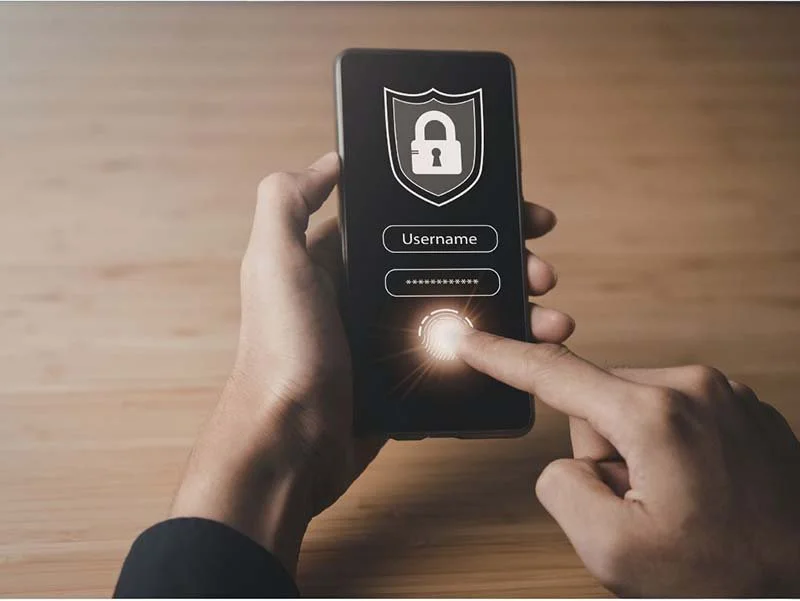
Creating a passkey is easy. In most cases, it takes less time than resetting a forgotten password.
You start by signing in like you normally would. Log into a website or app the same way you always have, usually with your username and password. This is often the last time you’ll need that password. Once you’re signed in, you’ll see an option that says something like “Create a passkey” or “Use a passkey next time.”
Next, you choose the device you want to use. Most people pick their phone, their laptop, or both. This device becomes your key going forward.
Then you confirm it’s really you. Your device will ask you to unlock it just like you already do every day. That might be Face ID, a fingerprint, or a device PIN. This step is important because it ties the passkey to you, not just the device.
And that’s it, you’re done. Seriously, that’s the whole setup. Behind the scenes, your device creates a secure digital key and stores it safely. The website never gets your secret, only proof that your device has it. From now on, when you go to log in, you choose “Sign in with passkey,” you unlock your device, and you’re in. No password typing. No remembering. No guessing.
What does this look like day to day? Let’s say you’re logging in tomorrow. You go to the site, click “Sign in with passkey,” and your phone or computer pops up asking for Face ID or a fingerprint. You confirm, and you’re logged in. That’s it.
Can you have passkeys on more than one device? Yes, and you should. Most people set them up on their phone, their work computer, and maybe a personal laptop. This gives you flexibility and backup just in case. Your passkeys are usually encrypted and securely synced, so switching devices doesn’t mean starting over.
What if a website doesn’t support passkeys yet? Then you’ll still use a password for now. Passkeys are being rolled out gradually, and more sites are adding support all the time. When the option appears, you can usually enable it in account settings under security or sign-in options.
Who supports creating passkeys? You may already have everything you need. Passkeys are built into platforms from Apple, Google, and Microsoft. If you use a modern phone, browser, or operating system, you’re likely ready.
The big picture is that creating a passkey isn’t a technical process, it’s a behavior change. Instead of proving who you are by typing a secret, you prove it by unlocking a device you already trust. Once people use a passkey for the first time, the reaction is usually the same: “Oh… that was way easier.” And that’s exactly the point.
Still have questions or need assistance with Passkeys? Schedule a call with us or visit our Learning Center for more information. We're here to help!