Which Adobe App Should I Use? A Plain-English Guide to Creative Cloud
If you’ve ever opened the Adobe Creative Cloud menu, it probably felt like staring at the world’s most complicated buffet. Photoshop, Illustrator, Acrobat, Premiere, InDesign, After Effects - so many tools, icons, and half of them sound like they do the same thing. So, what’s the difference?
Photoshop = photo/image editing. Let’s start with the one everyone’s heard of. Photoshop is the king of photo editing and raster graphics. That means it’s built for working with pixel-based images - photos, digital art, social media graphics. You can adjust colors, retouch portraits, remove backgrounds, or design layouts for online use.
Think of Photoshop as your tool for editing what already exists. If you’ve got a photo or raster image and you need to manipulate it, Photoshop is your go-to.
Illustrator = for anything that needs to look sharp at any size. Now Illustrator sounds like it should be a drawing app for kids, but it’s actually Adobe’s powerhouse for vector graphics. Unlike Photoshop, Illustrator creates images made of mathematical shapes, not pixels. That means logos, icons, and illustrations that can scale infinitely without getting blurry.
Use Illustrator for anything that needs to look sharp at any size - like your logo, which needs to work on a business card and a billboard.
Acrobat = all about documents, not design. If you’ve ever opened a PDF, you’ve used Acrobat, even if it was just the free Reader. Acrobat is Adobe’s tool for creating, editing, and managing PDF documents. Need to fill out forms, add signatures, or make a document that looks the same on every computer? That’s Acrobat. Businesses use it constantly for contracts, proposals, and anything official that needs to look consistent.
InDesign = multi-page layouts.This one confuses a lot of people because it overlaps with Photoshop and Illustrator. InDesign is Adobe’s tool for layout and publishing. If you’re making a brochure, magazine, book, or anything with lots of pages and text, InDesign is built for that. It handles columns, typography, and page flow way better than Photoshop or Illustrator ever could.
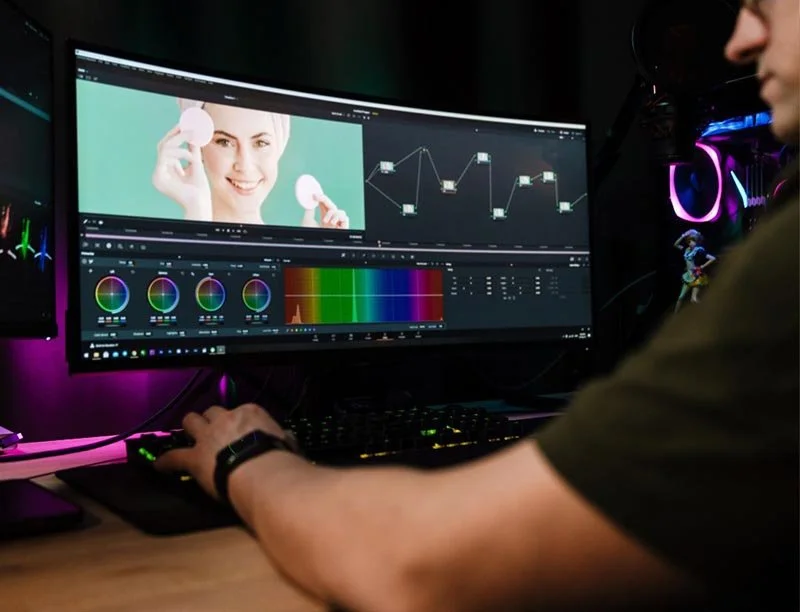
Premiere Pro = video editing.Now we move into video. Premiere Pro is Adobe’s professional video editing software. Cut clips, add transitions, sync audio, color-correct, export in different formats - Premiere is built to take raw video footage and turn it into a polished final product. It’s what most filmmakers, YouTubers, and video teams use for editing. If it’s video, Premiere is your editing hub.
After Effects = add the “wow” factor. After Effects often gets lumped in with Premiere, but it’s not the same. After Effects is for motion graphics and visual effects. Think animated text, fancy intros, visual effects like lightning bolts or explosions, or overlaying graphics on video. You wouldn’t edit an entire video in After Effects, but you’d use it to create animations that Premiere can’t.
Lightroom = photo adjustments in bulk. Lightroom is another photo tool, but it’s different from Photoshop. Lightroom is designed for photographers who need to manage and batch-edit thousands of images. It’s faster and more streamlined for adjusting lighting, color, and exposure across large collections. Photoshop is better for detailed editing.
Audition = pro-level sound cleanup and editing. This is Adobe’s audio editing software. If you’re working with podcasts, voiceovers, or need to clean up noisy audio from a video shoot, Audition is where you do it. Premiere has basic audio tools, but Audition gives you full control.
Experience Design (XD) = designing how users interact with software. XD is for UI/UX design - basically designing apps, websites, and interactive prototypes. If your team is building a new website or app interface, XD is where designers create mockups and clickable prototypes before developers start coding.
Animate. Yes, Adobe still has an animation tool. Animate (formerly Flash) is used for 2D animation and interactive content. It’s niche compared to the others but still used for web animations and cartoons.
So How Do You Choose? Here’s the simplest way to remember:
Photoshop = photos & pixel editing
Illustrator = logos & vector graphics
Acrobat = PDFs & documents
InDesign = layouts & publishing
Premiere = video editing
After Effects = motion graphics & effects
Lightroom = photography adjustments
Audition = audio editing
XD = UI/UX & app design
Animate = 2D animations
No single tool does it all. Adobe created these specialized apps so professionals can get exactly what they need without compromise.
At Simplex-IT, we don’t explain this to make your life difficult - we explain it so you don’t try to design a company brochure in Photoshop and wonder why it feels like you’re pushing a boulder uphill. The right Adobe tool makes your work faster, easier, and way more professional.
Still have questions or need assistance with Adobe Applications? Schedule a call with us or visit our Learning Center for more information. We're here to help!